AI Video Creation
pixverse-create-video
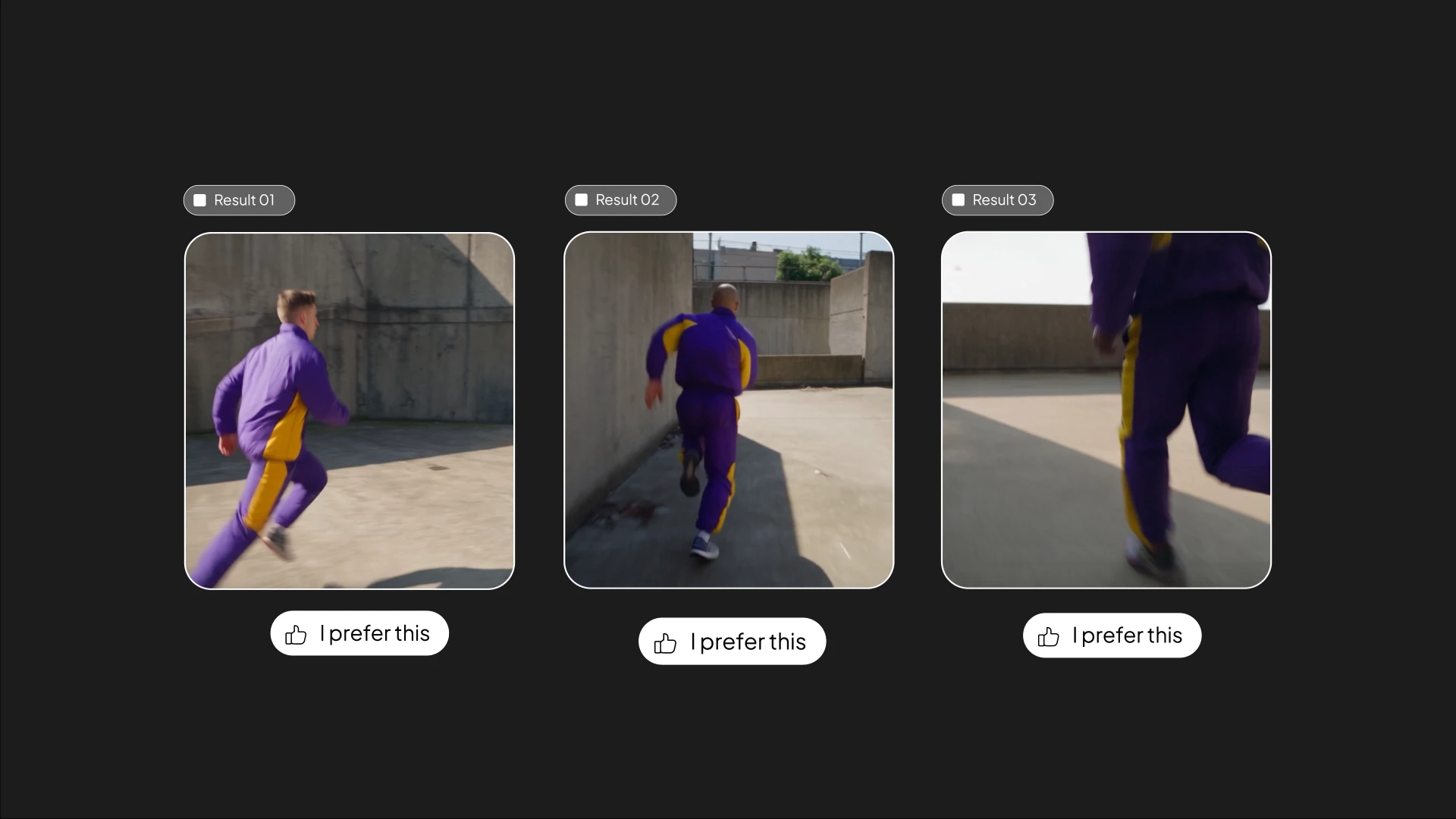
Create one direct text-to-video task using PixVerse Seedance 2.5, 720p, 16:9, 10 seconds. No reference images or additional generation tasks. Prompt: 10-second handheld parkour chase through a real urban concrete courtyard in daylight. One athlete in a vivid purple-and-yellow sports outfit. 0–3s: Sprint toward a waist-high barrier, camera chasing close behind with strong running shake. 3–6s: Speed vault the barrier, land, keep running; camera jolts and whip-pans with motion blur. 6–10s: Turn into a narrow passage, jump three steps, land and race past camera. One continuous shot, intense handheld motion, realistic movement and impacts. No slow motion, aerial shots, speech, music, text, or logos.
Start in 3 Steps
pixverse-create-video
Ask Your Agent
Copy the request below into the AI app where you want to use PixVerse.
Sign In to PixVerse
Follow your agent’s instructions to authorize the connection in your browser.
Run the Workflow
Copy this prompt into MCP and add your inputs to get started.
Set Up Manually Instead
In Cline, open MCP Servers → Configure → Configure MCP Servers. Merge the PixVerse entry into that file and keep your other servers.
Setup Configuration
{
  "mcpServers": {
    "pixverse": {
      "type": "streamableHttp",
      "url": "https://mcp.pixverse.ai/mcp",
      "disabled": false,
      "autoApprove": []
    }
  }
}
Save, return to PixVerse in MCP Servers, and choose Authenticate. Complete browser sign-in, then confirm the connection and tools appear.
Official Setup Guide ↗Recommended presets
Explore more PixVerse workflows for your next project.