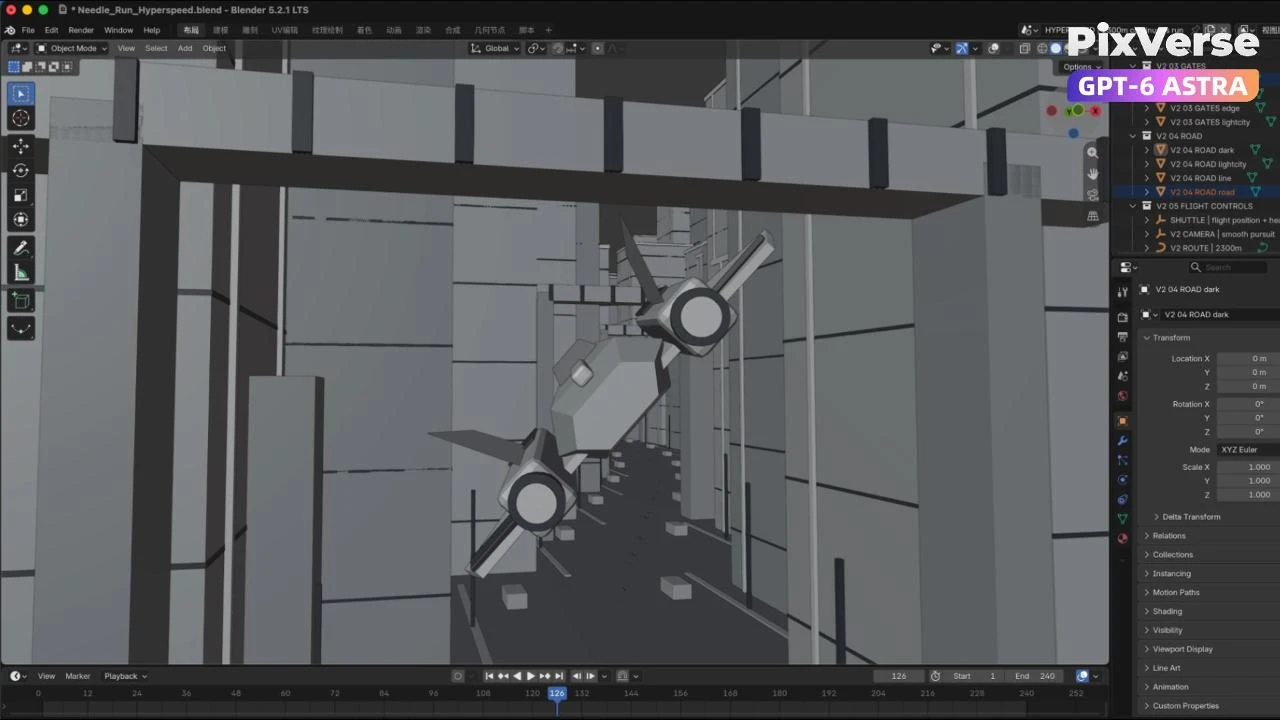
Create a 3D City Flight Scene
Fly through a 3D city and generate the final aerial sequence.
/city-flight Create a 10-second, single-take white-model shuttle flight in Blender. Build an original shuttle and a dense city canyon stretching several kilometers. Animate extremely fast forward flight along an extended route, covering over two kilometers without slowing down. Weave through narrow gaps and under bridges, change altitude, and perform two smooth barrel rolls in opposite directions. Make the speed unmistakable: nearby buildings streak backward, bridges whip overhead, and foreground structures rapidly sweep past the frame edges. Use strong directional motion blur on the environment while keeping the shuttle readable. Dense obstacles, close passes, and strong foreground-to-background parallax should convey sustained, full-throttle flight. Use a smooth wide-angle chase camera close behind and slightly above the shuttle, racing forward at matching speed. Keep the nose pointing into the city and the engines facing the camera. No cuts, camera shake, camera barrel rolls, slow motion, or deceleration at the ending. Test clearance, motion continuity, and the sense of speed at normal playback. Use @PixVerse to render the final white-model animation from Blender references, preserving the extreme speed, flight path, and camera movement. Deliver the final MP4, editable Blender project, and brief notes on limitations.
Start in 3 steps
Fly through a 3D city and generate the final aerial sequence.
Download ChatGPT Desktop
Install the ChatGPT desktop app on your computer.
Install the PixVerse plugin
Add PixVerse to ChatGPT to use this workflow.
Run the workflow
Copy this prompt into ChatGPT and add your inputs to get started.
Recommended presets
Explore more PixVerse workflows for your next project.
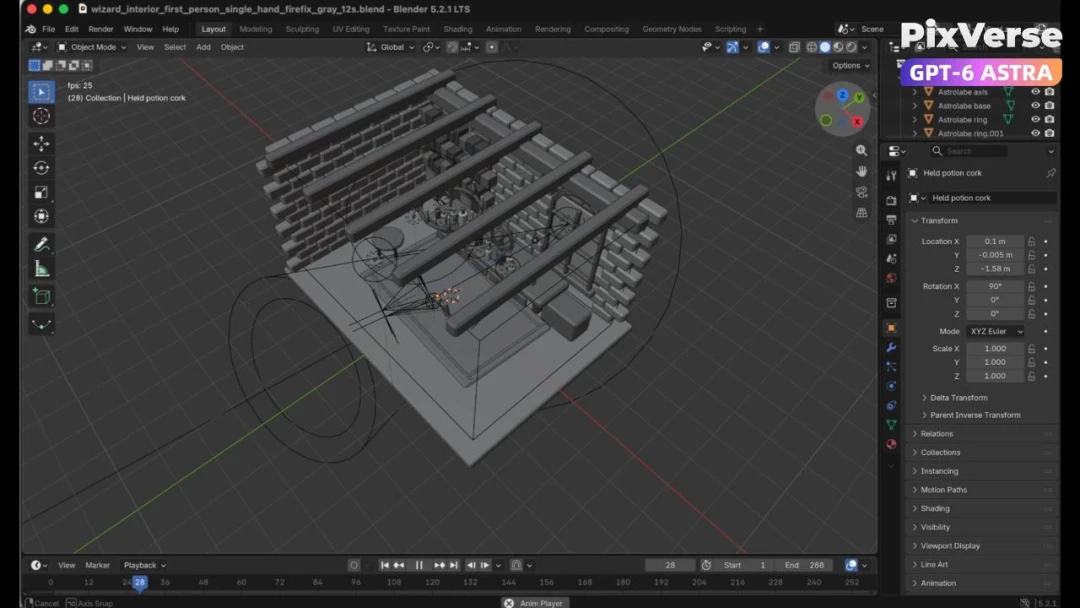
Create a 3D POV Wizard’s Workbench
Create a first-person 3D wizard’s workbench and bring it to life.
3D Modeling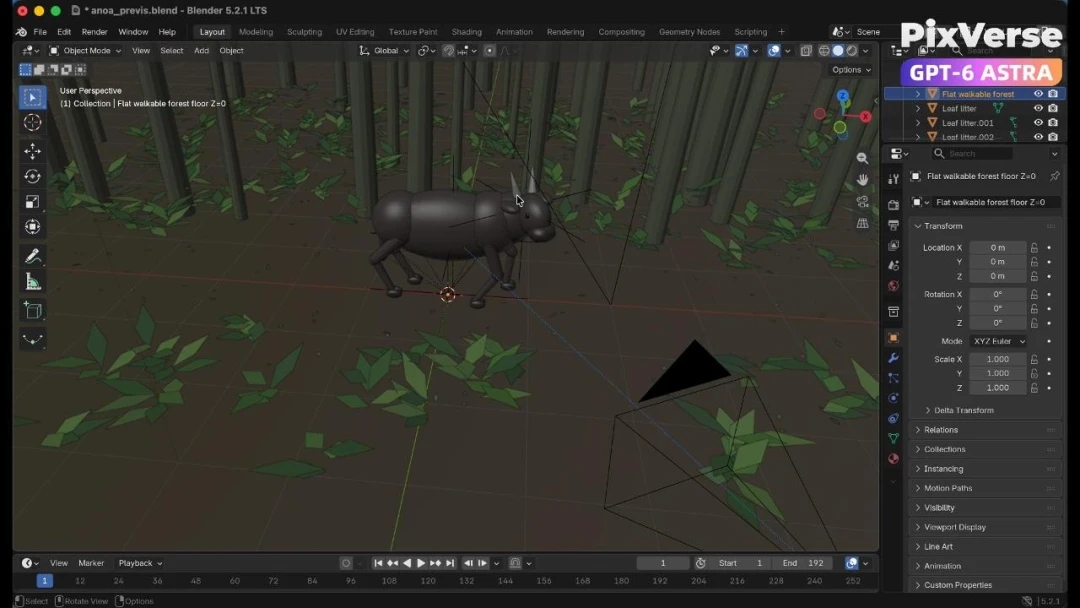
Recreate a Wildlife Scene in 3D
Recreate a wildlife scene in 3D with a stable camera path.
3D Modeling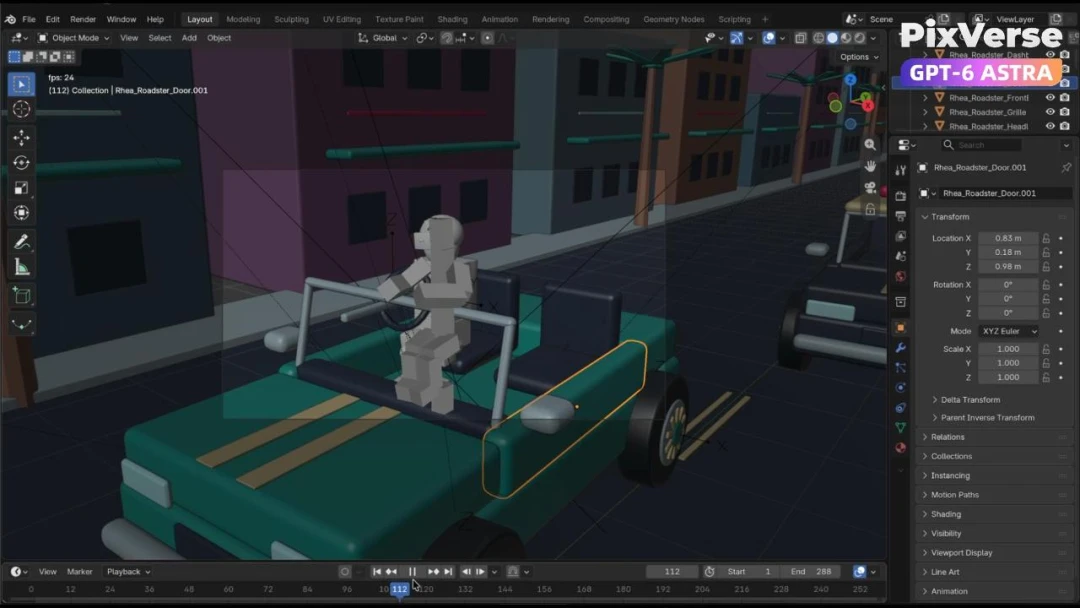
Create a Police Car Pursuit Scene
Build a police-car pursuit scene and generate the action footage.
3D Modeling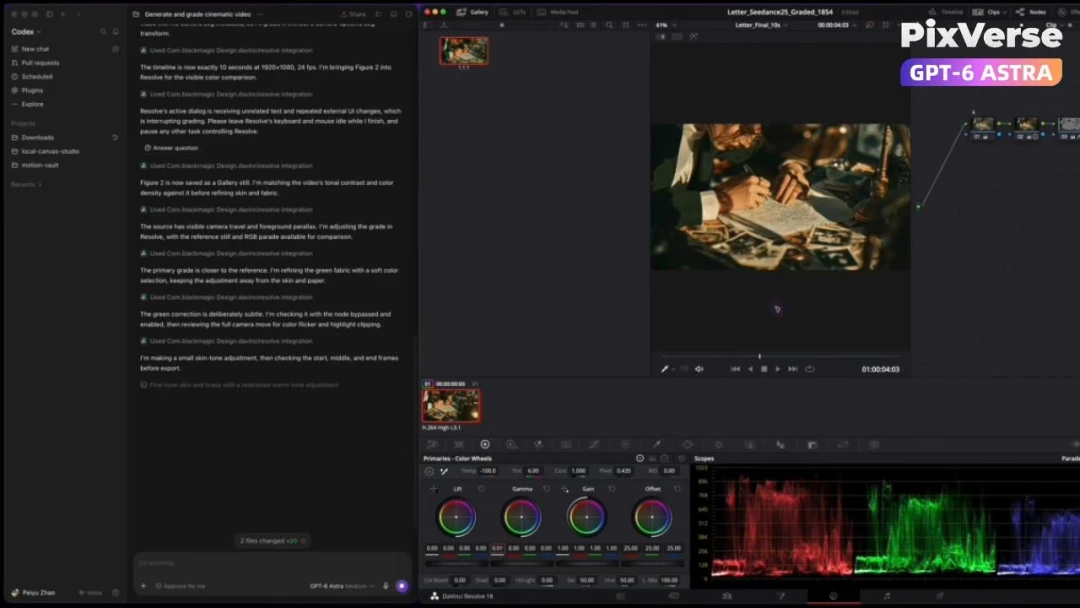
AI-Powered Cinematic Color Grading
Color-grade generated footage with an AI-assisted cinema look.
3D Modeling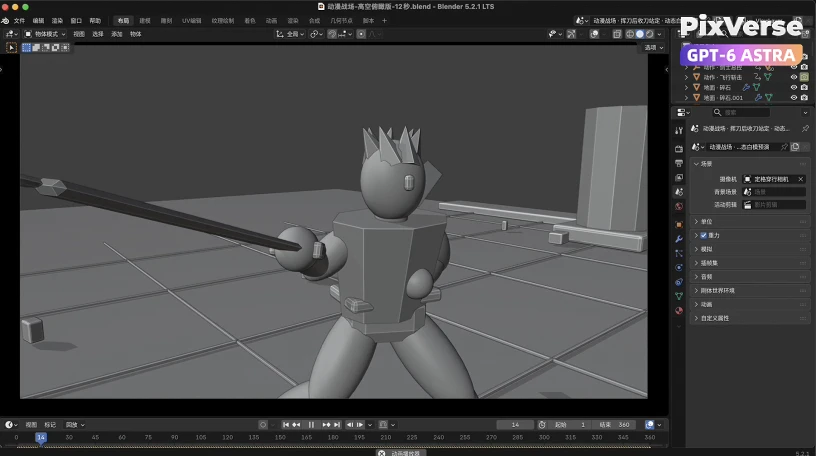
Create a Dark Knight Battlefield in 3D
Stage a dark-knight battlefield in 3D and generate the final film.
3D Modeling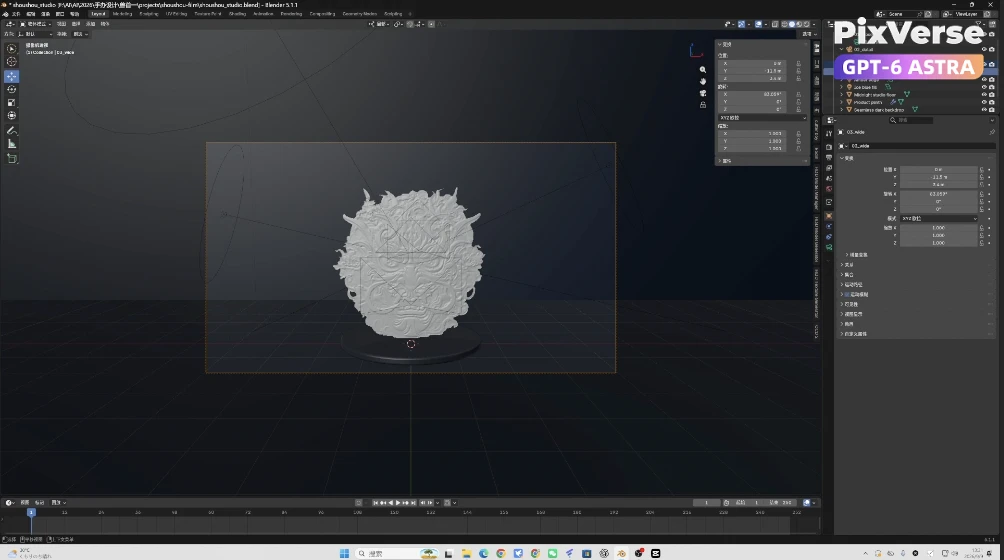
Create a 3D Chinese Lion Model
Sculpt a 3D Chinese lion and finish it as cinematic video.
3D Modeling