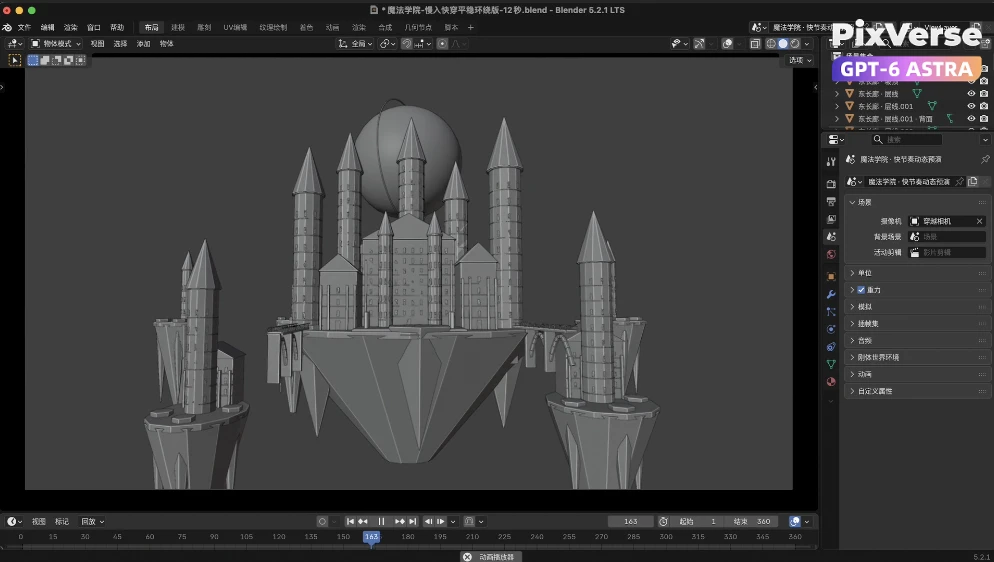
Build a Kingdom in the Clouds
Fly through a kingdom in the clouds and reveal the dragon.
/kingdom-in-the-clouds Create a 12-second, single-take white-model animation in Blender, then use @PixVerse to transform the exported animation into a spectacular live-action fantasy film sequence. In Blender, build a monumental entrance, a rotating astronomical instrument, and a vast floating magical academy. Use simple white or light-gray geometry with readable silhouettes and basic lighting. Show the complete entrance door at the beginning, with solid walls surrounding it and fully concealing the world behind it. Give the door a realistically proportioned small keyhole. Beyond the entrance, arrange a large central castle, towers, smaller floating islands, and connecting bridges. Establish an impressive architectural scale and generous distances between structures. Begin with a slow approach toward the door, then accelerate sharply and fly continuously through the keyhole. Animate a floating key turning and moving aside before the camera passes. Continue through rapidly rotating astronomical rings, reveal the floating academy, and transition into a smooth orbit around the architecture. Let nearby islands rise quickly and bridge sections rotate into place. Keep object movements energetic and decisive. The orbit should flow continuously, with smooth changes in speed and no repeated pauses. Check the keyhole passage, camera clearance, spatial continuity, and motion at normal playback. Export the clean 12-second white-model MP4. Then use @PixVerse to generate a 12-second AI-rendered video, using the Blender animation as a loose structural and motion reference. Preserve the recognizable progression from door approach to keyhole passage, astronomical instrument, academy reveal, and orbit, while freely enriching the world and cinematic staging. Turn the academy into an immense, ancient floating city: a central castle surrounded by districts, libraries, observatories, courtyards, layered rooftops, enormous stone bridges, and waterfalls plunging into clouds. Extend the surroundings into forested valleys, lakes, distant mountains, and additional floating islands. Add tiny pedestrians, flying vessels, moving flags, birds, and atmospheric activity to communicate scale. During the later orbit, let an enormous dragon emerge from clouds behind the academy and glide past the towers, casting a moving shadow over the city. Aim for the richness of a live-action fantasy feature film, with weathered materials, soft golden sunlight breaking through cool clouds, natural atmospheric depth, and gentle photographic highlights. Include original orchestral music and synchronized environmental and action sounds. Deliver the white-model MP4, the PixVerse AI-rendered MP4, and the editable Blender project.
Start in 3 steps
Fly through a kingdom in the clouds and reveal the dragon.
Download ChatGPT Desktop
Install the ChatGPT desktop app on your computer.
Install the PixVerse plugin
Add PixVerse to ChatGPT to use this workflow.
Run the workflow
Copy this prompt into ChatGPT and add your inputs to get started.
Recommended presets
Explore more PixVerse workflows for your next project.
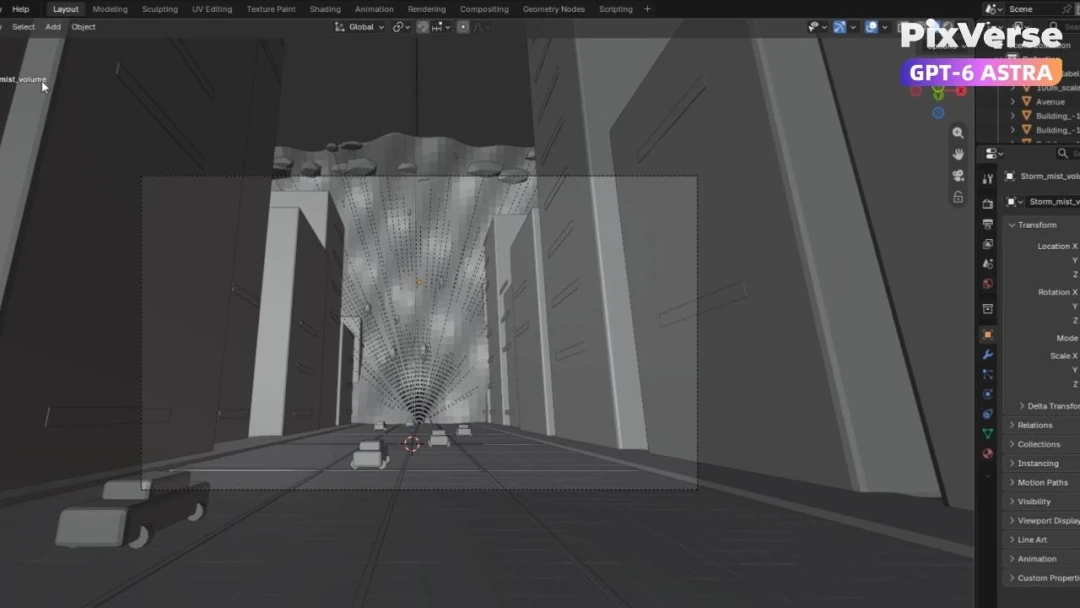
Simulate a Tsunami in New York
Simulate a tsunami hitting New York in 3D.
3D Modeling
Create a Kung Fu Cat
Create a kung-fu cat and generate the fight sequence.
3D Modeling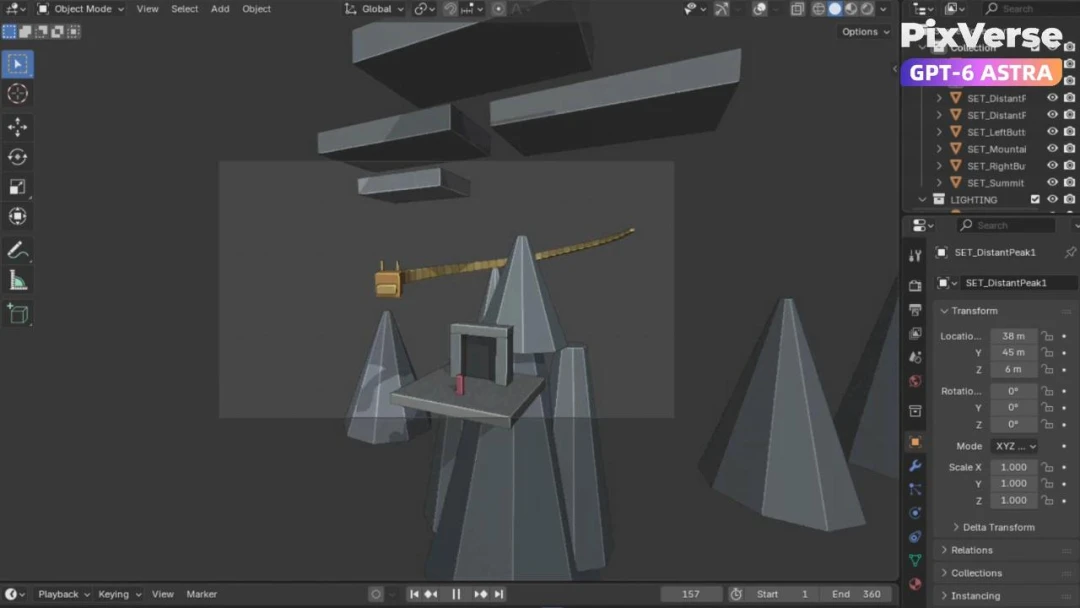
Create a Chinese Dragon in Xianxia Scene
Create a xianxia dragon scene with cinematic motion.
3D Modeling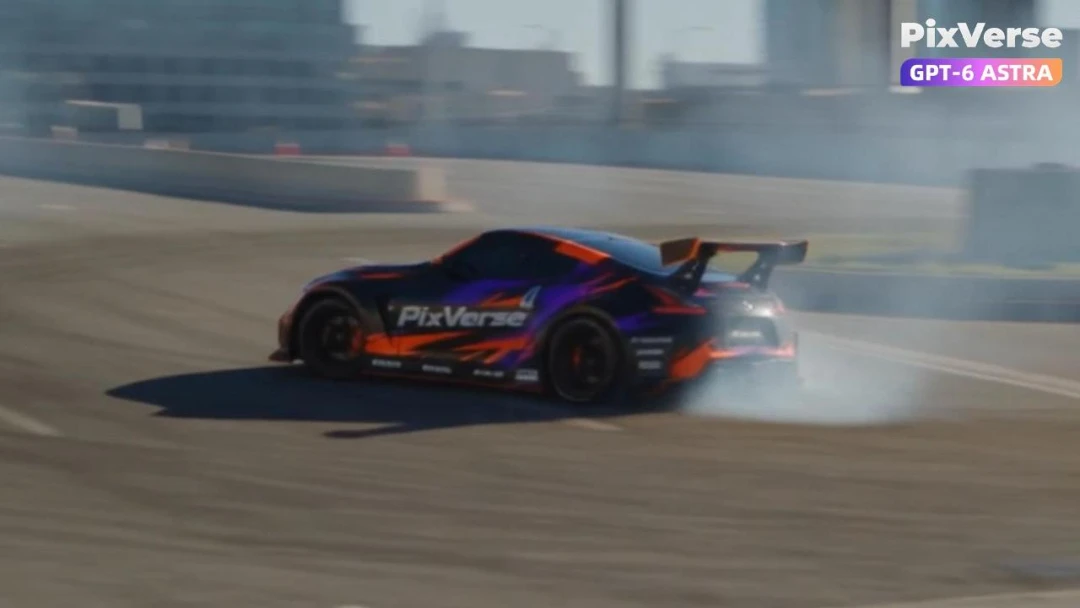
Simulate a Car Drift in 3D
Simulate a 3D car drift and generate the final shot.
3D Modeling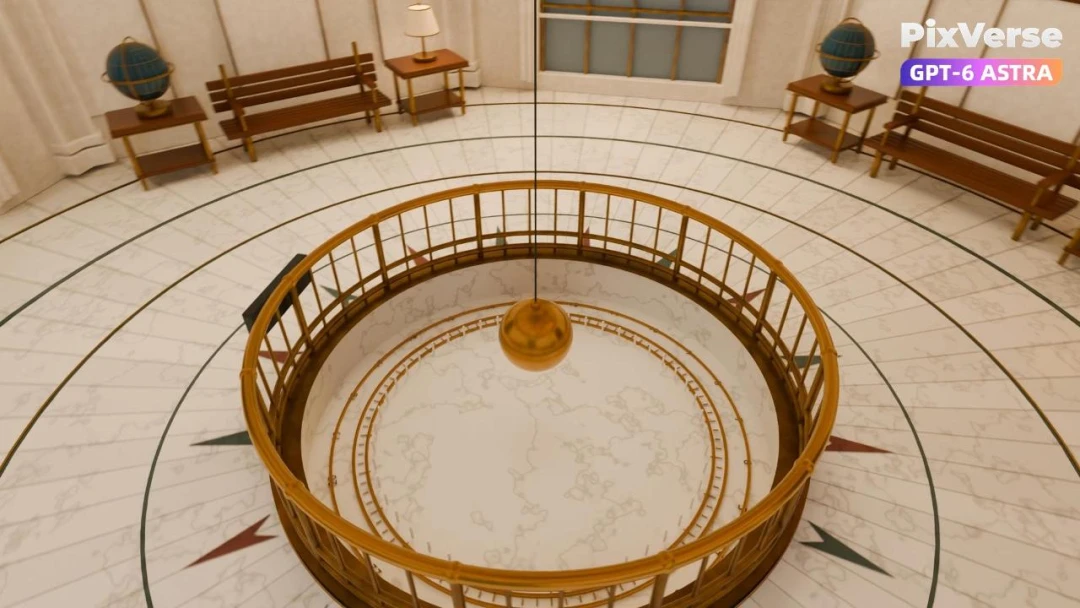
Recreate Griffith Observatory in 3D
Recreate Griffith Observatory’s interior in 3D, then finish the camera move in PixVerse.
3D Modeling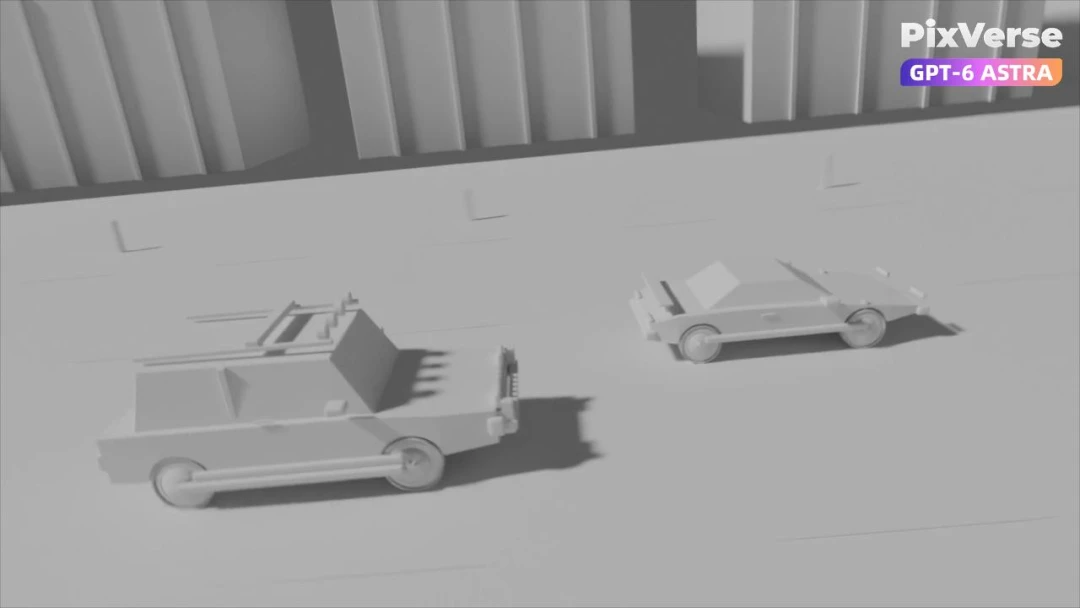
Simulate a 3D Race Car Crash
Stage a 3D race-car chase and crash, then generate the final cinematic shots.
3D Modeling